Linkline User Guide
Linkline is a desktop app for solo technicians to manage client details, optimized for use via a Command Line Interface (CLI) while still having the benefits of a Graphical User Interface (GUI). If you can type fast, Linkline can get your contact management tasks done faster than traditional GUI apps.
Quick start
Ensure you have Java
17or above installed in your Computer.
Mac users: Ensure you have the precise JDK version prescribed here.Download the latest
.jarfile from here.Copy the file to the folder you want to use as the home folder for Linkline.
Open a command terminal,
cdinto the folder you put the jar file in, and use thejava -jar linkline.jarcommand to run the application.
A GUI similar to the below should appear in a few seconds. Note how the app contains some sample data.
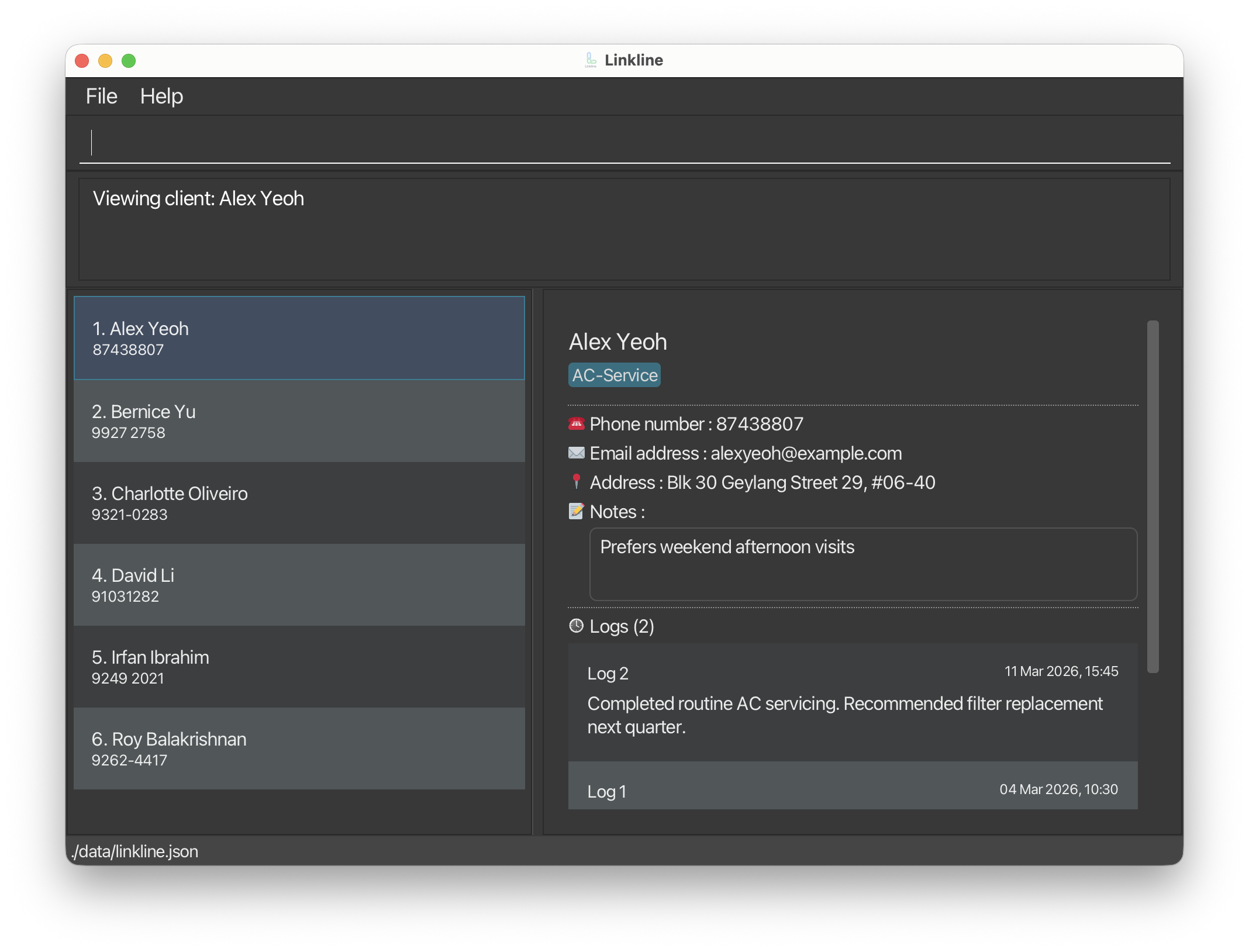
Type the command in the command box and press Enter to execute it. e.g. typing
helpand pressing Enter will open the help window.
Some example commands you can try:list: Lists all contacts.add --name=John Doe --phone=98765432 --email=johnd@example.com --address=John street, block 123, #01-01: Adds a contact namedJohn Doeto Linkline.copyaddr 3: Copies the address of the 3rd contact shown in the current list to user's clipboard.clear: Deletes all contacts.exit: Exits the app.
Refer to the Features below for details of each command.
Features
Notes about the command format:
Words in
UPPER_CASEare the parameters to be supplied by the user.
e.g. inadd --name=NAME,NAMEis a parameter which can be used asadd --name=John Doe.Items in square brackets are optional.
e.g--name=NAME [--tag=TAG]can be used as--name=John Doe --tag=AC-Serviceor as--name=John Doe.Items with
… after them can be used multiple times including zero times.
e.g.[--tag=TAG]…can be used as--tag=AC-Service,--tag=AC-Service --tag=Plumbingetc.Parameters can be in any order except for
renametag.
e.g. if the command specifies--name=NAME --phone=PHONE_NUMBER,--phone=PHONE_NUMBER --name=NAMEis also acceptable.If you are using a PDF version of this document, be careful when copying and pasting commands that span multiple lines as space characters surrounding line-breaks may be omitted when copied over to the application.
Field constraints
The following constraints apply to command fields:
NAME: must not be blank, up to 100 characters.PHONE_NUMBER: must contain 3 to 15 digits in total. Spaces and hyphens are allowed only between digits.EMAIL: must be in validlocal-part@domainformat and satisfy email length/rule checks.ADDRESS: must not be blank.TAG: must not be blank, 1 to 50 characters.NOTES: 0 to 200 characters.LOG_MESSAGE: must not be blank, 1 to 1000 characters.
Viewing help : help
Shows a message explaining how to access the help page.
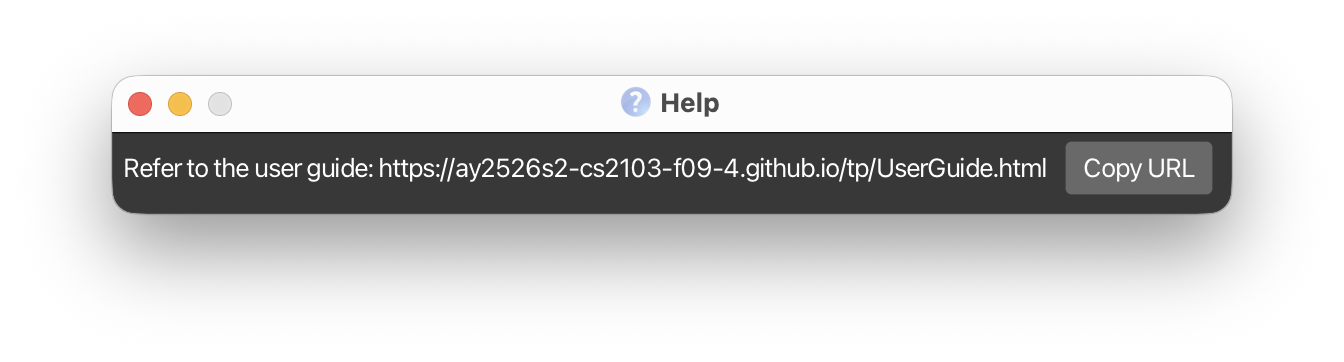
Format: help
- This command does not accept any arguments.
- Entering
helpwith additional parameters (e.g.,help 123) will return an error message.
Adding a client: add
Adds a client to Linkline. List is automatically sorted lexicographically by NAME, followed by PHONE_NUMBER
- Client with the same email or phone number as an existing client in Linkline cannot be added as they are considered duplicated clients.
Format: add --name=NAME --phone=PHONE_NUMBER --email=EMAIL --address=ADDRESS [--tag=TAG]… [--notes=NOTES]
Tip: A client can have any number of tags (including 0) and 1 or 0 notes.
Examples:
add --name=John Doe --phone=9876-5432 --email=johnd@example.com --address=John street, block 123, #01-01add --name=Betsy Crowe --tag=AC service --email=betsycrowe@example.com --address=123 Clementi Rd #04-05 --phone=9123 4567 --notes=Gate code 1234, beware of large dog
Listing all clients : list
Shows a sorted list of all clients in Linkline.
Format: list
- This command does not accept any arguments.
- Entering
listwith additional parameters (e.g.,list 123) will return an error message.
Editing a client : edit
Edits an existing client in Linkline.
Format:
edit INDEX [--name=NAME] [--phone=PHONE_NUMBER] [--email=EMAIL] [--address=ADDRESS] [--tag=TAG]… [--notes=NOTES]
- Edits the client at the specified
INDEX. - The index refers to the index number shown in the displayed client list.
- The index must be a positive integer 1, 2, 3, …
- At least one of the optional fields must be provided.
- Existing values will be updated to the input values.
- When editing tags, the existing tags of the client will be removed i.e adding of tags is not cumulative.
- You can remove all the client’s tags or notes by typing
--tag=or--notes=respectively without specifying any tags after it. - If the edited client duplicates another existing client in Linkline, the edit will fail.
Examples:
edit 1 --phone=91234567 --email=johndoe@example.comEdits the phone number and email address of the 1st client to be91234567andjohndoe@example.comrespectively.edit 2 --name=Betsy Crower --tag=Edits the name of the 2nd client to beBetsy Crowerand clears all existing tags.
Locating clients by personal details: find
Finds clients whose names / phone numbers / email address / physical address / tags are matched by the queried keywords specified per field. A sorted list of such clients is returned.
Any find operation is applied only to the currently displayed list, and multiple find / filter operations can be
chained together to shorten the list.
For example, if there are 10 clients initially on the list, and a find / filter operations shortens it to 5 clients,
any subsequent find / filter operations would only search within those 5 clients.
Format:
find [--name=SUBNAME [--name=MORE_SUBNAMES] ...] [--phone=SUBNUMBER [--phone=MORE_SUBNUMBERS] ...] [--email=SUBEMAIL [--email=MORE_SUBEMAILS] ...] [--address=SUBADDRESS [--address=MORE_SUBADDRESS] ...] [--tag=TAG [--tag=MORE_TAGS] ...]
- Any preamble given will result in an error.
- At least one of the optional fields must be provided.
- If a field is specified, it must not be empty.
- A field can be specified as many times as keywords are required.
- The order in which the fields are specified does not matter.
- Only the fields specified are searched against.
- In all fields, the search is case-insensitive. e.g. In name field,
hanswill matchHans. - In all fields, the order of the keywords does not matter. e.g. In name field,
Hans Bowill matchBo Hans. - In name, phone number, email address, physical address fields, clients whose field matches at least one keyword in
that specified field as a substring will be returned (i.e.
ORsearch). e.g. In name field,Gru Yawill matchHans Gruber,Bo Yang. - In tag field, clients whose field match at least one keyword in that specified field exactly will be returned (i.e.
ORsearch) as a union with the other fields mentioned. e.g. In tag fieldAC-Servicewill match onlyAC-Service.
Examples:
findis not a valid command as no fields are provided.find --name=Alice --phone= --email=gmail.comis not a valid command as phone field is specified but empty.find --name=Alice Bobwill have 1 keywordAlice Bob.find --name=Alice --name=Bobwill have 2 name keywordsAliceandBob.find --name=jon --name=Jackcan return clients with namesJonathon Lee,Jon Doe, andJack Black.find --phone=1234can return clients with numbers91234567and94561234.find --email=.educan return clients with email addressese123456678@u.nus.eduandf123456678@u.ntu.edu.find --address=Streetcan return clients with physical addressesWoodlands Street,Admiralty Streetfind --tag=wiringcan return clients with tagWiring, but notElectricalWiring,find --name=James --name=Jake --phone=123 --phone=4567 --email=@yahoo.com --address=Street --address=Avenue --address=Boulevard --tag=Aircon-Repairis a valid combination of all fields.find --phone=123 --phone=4567 --name=James --name=Jake --tag=Aircon-Repair --email=@yahoo.com --address=Street --address=Avenue --address=Boulevardwill return the same results as the previous command.

Deleting a client : delete
Deletes the specified client from Linkline with confirmation.
Format: delete INDEX
- Deletes the client at the specified
INDEX. - The index refers to the index number shown in the displayed client list.
- The index must be a positive integer 1, 2, 3, …
- Two-step confirmation:
- First run of
delete INDEX: shows a confirmation message only (no deletion yet). - Second matching
delete INDEX: completes the deletion.
- First run of
- Any other command (including invalid command input) after the first
deletewill cancel the pending deletion.
Examples:
listfollowed bydelete 2- Shows confirmation message with the client's details (no deletion yet).
- Typing
delete 2again confirms and deletes the 2nd client.
find --name=Betsyfollowed bydelete 1- Shows confirmation message for the 1st client in the search results, if exists (no deletion yet).
- Typing
delete 1again deletes that client.
delete 1followed bylist- The pending deletion is cancelled. The list command executes normally.
Tip: After the first delete 1 command, any of the following will confirm the deletion: delete 1 or delete 01.
Leading/trailing spaces and spaces between the command word and index are ignored, numbers with leading zeros (e.g., '01', '001') also confirm the deletion.
Copying a client's address: copyaddr
Copies the specified client's address from Linkline.
Format: copyaddr INDEX
- Copies the client's address at the specified
INDEX. - The index refers to the index number shown in the displayed client list.
- The index must be a positive integer 1, 2, 3, …
Copying a client's edit command format: copyedit
Copies the edit command format for the specified client, allowing you to easily modify their details.
Format: copyedit INDEX
- Copies the edit command with all current details of the client at the specified
INDEX. - The index refers to the index number shown in the displayed client list.
- The index must be a positive integer 1, 2, 3, …
- The copied format includes the client's name, phone, email, address, notes, and all tags.
Viewing client details: view
Shows the specified client's full details.
Format: view INDEX
- Shows the client's full details at the specified
INDEXin the right-hand panel. - The index refers to the index number shown in the current displayed client list.
- The index must be a positive integer 1, 2, 3, …
Examples:
find --name=John Donfollowed byview 1add --name=John Doe --phone=9876-5432 --email=johnd@example.com --address=John street, block 123, #01-01followed byview 1
Adding a client log: logadd
Adds a timestamped log entry to the specified client.
Format: logadd INDEX LOG_MESSAGE
- Adds a new log entry to the client at the specified
INDEX. - The index refers to the index number shown in the displayed client list.
- The index must be a positive integer 1, 2, 3, ...
LOG_MESSAGEmust be between 1 and 1000 characters.
Examples:
logadd 1 Observed leakage beneath sink during site visit.logadd 2 Client requested follow-up call next Wednesday at 2pm.
Deleting a client log: logdelete
Deletes a specific log entry from the specified client with confirmation.
Format: logdelete CLIENT_INDEX LOG_INDEX
- Deletes the log at
LOG_INDEXfor the client atCLIENT_INDEX. CLIENT_INDEXrefers to the index number shown in the displayed client list.LOG_INDEXrefers to the log number shown in the UI for that client.- Log numbering note: Logs are displayed newest-first, but numbered oldest-to-newest.
For example, if a client has 5 logs, the topmost (and the latest) log is
Log 5. - Both indices must be positive integers 1, 2, 3, ...
- Two-step confirmation:
- First run of
logdelete CLIENT_INDEX LOG_INDEX: shows a confirmation message only (no deletion yet). - Second matching
logdelete CLIENT_INDEX LOG_INDEX: deletes the selected log.
- First run of
- Any other command (including invalid command input) after the first
logdeletewill cancel the pending log deletion.
Examples:
view 2followed bylogdelete 2 1- Shows confirmation message for log
1of client2(no deletion yet). - Typing
logdelete 2 1again confirms and deletes that log.
- Shows confirmation message for log
logdelete 2 1followed bylist- The pending log deletion is cancelled. The list command executes normally.
Filtering clients by tags: filter
Filters clients whose tags contain all the given keywords. If there is more than one client, the list returned is sorted.
Format: filter --tag=TAG_KEYWORD [--tag=MORE_KEYWORDS]…
- Multiple keywords can be provided, separated by spaces
- The filter is case-insensitive. e.g
Plumbingwill matchplumbing - Only filters by tags.
- Only clients matching all one keyword will be returned (i.e.
ANDsearch).
Renaming a tag: renametag
Renames an existing tag to a new name across Linkline. All clients with the old tag will be updated with the new tag name.
Format: renametag --tag=OLD_TAG --tag=NEW_TAG
- Tags have to be in this specific order and only 2 parameters are accepted.
- The
OLD_TAGmust exist in Linkline. - The
NEW_TAGmust be a valid tag name and should not already exist in Linkline. - Tag names are case-insensitive. e.g.,
PLUMBINGandplumbingare considered the same tag.
Examples:
renametag --tag=AC-Service --tag=Aircon-Repairrenames all instances ofAC-ServicetoAircon-Repair.renametag --tag=plumbing --tag=General-Maintenancerenames theplumbingtag toGeneral-Maintenance.
Deleting a tag: deletetag
Deletes a specific tag and removes it from all clients currently having it.
Format: deletetag TAG_NAME
- The
TAG_NAMEmust exist in Linkline. - Two-step confirmation:
- First run of
deletetag TAG_NAME: shows a confirmation message only (no deletion yet). - Second matching
deletetag TAG_NAME: removes that tag globally from all clients.
- First run of
- Any other command (including invalid command input) after the first
deletetagwill cancel the pending tag deletion. - This operation cannot be undone.
Examples:
deletetag plumbing- Shows confirmation message for deleting tag
plumbing(no deletion yet). - Typing
deletetag plumbingagain confirms and removes it from all clients.
- Shows confirmation message for deleting tag
deletetag plumbingfollowed bylist- The pending tag deletion is cancelled. The list command executes normally.
Clearing all entries : clear
Clears all entries in Linkline.
Format: clear
- This command does not accept any arguments.
- Entering
clearwith additional parameters (e.g.,clear 123) will return an error message. - Two-step confirmation:
- First run of
clear: shows a confirmation message only (no clearing yet). - Second
clear: clears all entries in Linkline.
- First run of
- Any other command (including invalid command input) after the first
clearwill cancel the pending action.
Exiting the program : exit
Exits the program.
Format: exit
- This command does not accept any arguments.
- Entering
exitwith additional parameters (e.g.,exit 123) will return an error message.
Saving the data
LinkLine data are saved in the hard disk automatically after any command that changes the data. There is no need to save manually.
Editing the data file
LinkLine data are saved automatically as a JSON file [JAR file location]/data/linkline.json. Advanced users are
welcome to update data directly by editing that data file.
Caution:
If your changes to the data file makes its format invalid, LinkLine will discard all data and start with an empty data
file at the next run. Hence, it is recommended to take a backup of the file before editing it.
Furthermore, certain edits can cause the LinkLine to behave in unexpected ways (e.g., if a value entered is outside the
acceptable range). Therefore, edit the data file only if you are confident that you can update it correctly.
FAQ
Q: How do I transfer my data to another Computer?
A: Install the app in the other computer and overwrite the empty data file it creates with the file that contains
the data of your previous LinkLine home folder.
Known issues
- When using multiple screens, if you move the application to a secondary screen, and later switch to using only
the primary screen, the GUI will open off-screen. The remedy is to delete the
preferences.jsonfile created by the application before running the application again. - If you minimize the Help Window and then run the
helpcommand (or use theHelpmenu, or the keyboard shortcutF1) again, the original Help Window will remain minimized, and no new Help Window will appear. The remedy is to manually restore the minimized Help Window.
Command summary
| Action | Format, Examples |
|---|---|
| Add | add --name=NAME --phone=PHONE_NUMBER --email=EMAIL --address=ADDRESS [--tag=TAG]… [--notes=NOTES] e.g., add --name=James Ho --phone=22224444 --email=jamesho@example.com --address=123, Clementi Rd, 1234665 --tag=AC-Service --tag=Plumbing --notes=Prefers morning visits |
| Clear | clear |
| Copy Address | copyaddr INDEXe.g., copyaddr 1 |
| Copy Edit Command Format | copyedit INDEXe.g., copyedit 2 |
| Delete | delete INDEXe.g., delete 3 |
| Delete Tag | deletetag TAG_NAMEe.g., deletetag plumbing |
| Edit | edit INDEX [--name=NAME] [--phone=PHONE_NUMBER] [--email=EMAIL] [--address=ADDRESS] [--tag=TAG]… [--notes=NOTES]e.g., edit 2 --name=James Lee --email=jameslee@example.com |
| Filter | filter --tag=TAG_KEYWORD [--tag=MORE_KEYWORDS]…e.g., filter --tag=Plumbing |
| Find | find [--name=SUBNAME [--name=MORE_SUBNAMES] ...] [--phone=SUBNUMBER [--phone=MORE_SUBNUMBERS] ...] [--email=SUBEMAIL [--email=MORE_SUBEMAILS] ...] [--address=SUBADDRESS [--address=MORE_SUBADDRESS] ...] [--tag=TAG [--tag=MORE_TAGS] ...]e.g., find --name=James --name=Jake --phone=123 --phone=4567 --email=@yahoo.com --address=Street --address=Avenue --address=Boulevard --tag=Aircon-Repair |
| Help | help |
| List | list |
| Log Add | logadd INDEX LOG_MESSAGEe.g., logadd 1 Observed leakage beneath sink during site visit. |
| Log Delete | logdelete CLIENT_INDEX LOG_INDEXe.g., logdelete 2 1 |
| Rename Tag | renametag --tag=OLD_TAG --tag=NEW_TAGe.g., renametag --tag=AC-Service --tag=Aircon-Repair |
| View | view INDEXe.g., view 1 |